The best time to discover a QR-code problem is before hundreds or thousands of copies are printed. A proper test should cover the encoded content, the landing page, the physical size, the printing material and the conditions in which people will scan. This guide provides a repeatable pre-print quality process that can be used for business cards, menus, posters, labels, packaging and signage.
Verify the encoded destination
Scan the digital code and check the exact destination. For URLs, confirm the domain, path, HTTPS security and mobile layout. For Wi-Fi, test an actual connection. For contact data, verify spelling, phone number and email fields.
A QR code can be technically perfect while still sending users to outdated or incorrect information. Content verification should therefore happen before visual design review.
Screenshot-based pre-print review
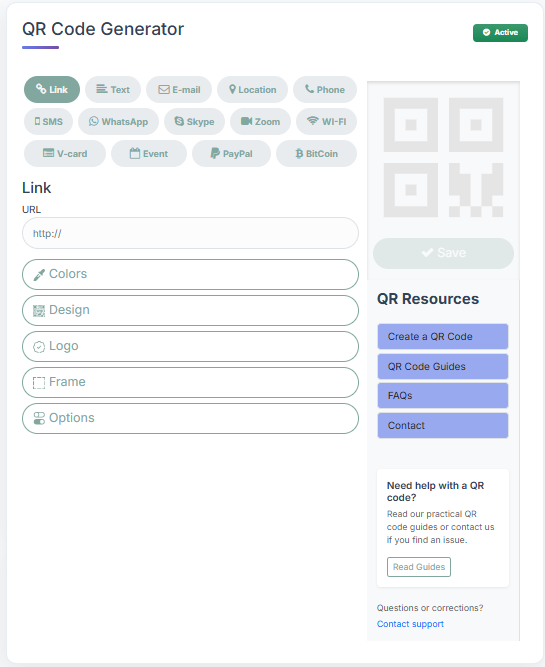
Before printing, the QR code should be reviewed inside the generator and then tested again after it is placed into the final artwork. The screenshot highlights the practical review stage: selected QR type, input fields, customization panels, preview and download area.
| Review point | Pass condition |
|---|---|
| Correct QR type | The selected type matches the intended action, such as Link, Wi-Fi, WhatsApp or vCard. |
| Visible preview | The generated code is visible and not blocked by empty or inactive controls. |
| Final placement | The code is scanned again after insertion into the actual card, poster, menu or PDF. |
Print at the real size
Do not rely only on a large screen preview. Print one copy at the exact intended dimensions. Small modules can blur, merge or disappear depending on printer resolution, ink spread and paper quality.
If a code will appear in several sizes, test the smallest version separately. That version is usually the limiting case.
Test from realistic distances
A business card is scanned from close range, while a poster or wall sign may be scanned from several feet away. Stand where a typical user will stand and attempt the scan naturally.
If you need to move unusually close or hold the phone at a precise angle, the code should probably be made larger or simplified.
Check lighting and reflections
Bright overhead lights can reflect from glossy lamination, plastic or glass and temporarily hide modules. Low light can slow focus. Test under the normal lighting conditions of the venue.
If the surface is reflective, change the angle, use a matte finish or reposition the code. Production choices can be as important as the QR design itself.
Test multiple devices
Use several phones if possible, including different operating systems and at least one older device. Camera quality and QR recognition vary, so a code that scans instantly on a flagship phone may be less reliable elsewhere.
You do not need to test every phone model, but multiple devices provide a better confidence level than a single personal handset.
Inspect curves, folds and damage risk
On bottles and curved packaging, keep the code away from areas where the surface bends sharply. On brochures, avoid folds and binding edges. On labels, consider whether abrasion or condensation could obscure parts of the pattern.
If the environment is harsh, a larger code and stronger contrast can provide more tolerance.
Re-test the final production artwork
Design software may resize, recolor or compress the QR code. A printer may convert color profiles or rasterize vector artwork. These changes can alter module clarity even when the original generator file was correct.
Always scan the final PDF or print proof that will actually go to production, not only the original downloaded code.
Pre-print sign-off checklist
Confirm destination, size, contrast, quiet zone, logo, distance, lighting, substrate and multiple-device performance. Keep one approved sample as a reference for the production team.
For large print runs, the cost of one careful proof is small compared with reprinting unusable materials. Make QR testing a formal part of design approval.
Create and test your QR code
Use the generator, then apply the practical checks from this guide before you publish or print.
Open QR Generator